How to Reply to Emails with AI on Mac (in Any Mail App)
Most guides about AI email replies assume you live inside Gmail or Outlook. But on a Mac, your email rarely lives in one place: a work inbox in Apple Mail, a personal one in the browser, maybe a corporate client you didn't choose. What you actually want is one gesture that works everywhere.
This is the complete workflow to reply to any email with AI on macOS, using three keystrokes and no copy-pasting into a chatbot. It works the same in Apple Mail, Gmail, Outlook, Thunderbird, Spark, Fastmail, or anything else where you can select text.
What you need
- A Mac running macOS 12 or later
- MailReply, a small assistant that lives in your menu bar (it has a built-in demo on a sample email, so you can try the whole flow before pointing it at your inbox)
- Accessibility permission, which the app requests on first launch: it's what lets it read the text you select and paste the finished reply back for you
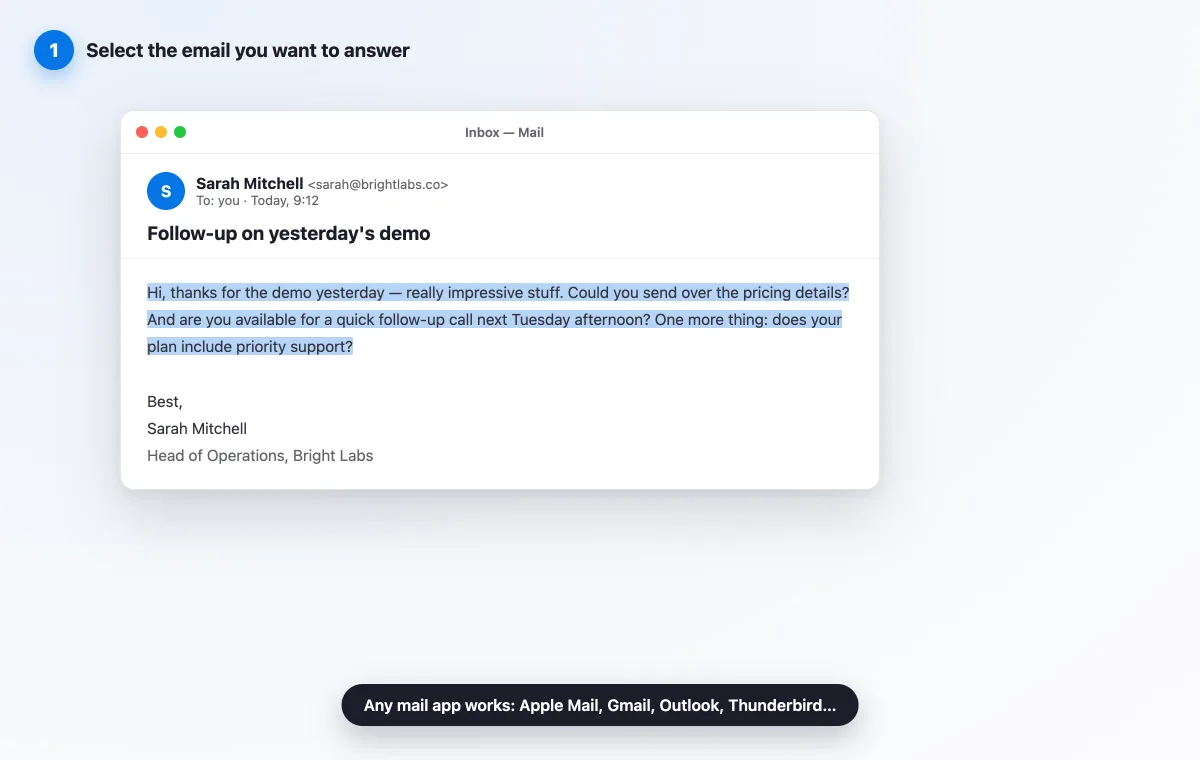
Step 1 - Select the email you want to answer
Open the email in whatever app it lives in and select the text you're replying to, like you would before copying it. That selection is all the context the AI needs: who wrote, what they asked, and crucially which language they used.
Step 2 - Press ⌃ Space and let the AI write the reply
Press ⌃ Space (Control + Space). MailReply grabs the selected text, opens a small popover under its menu bar icon, and writes a complete reply on the spot: greeting, answers to every question in the email, and a sign-off with your name.
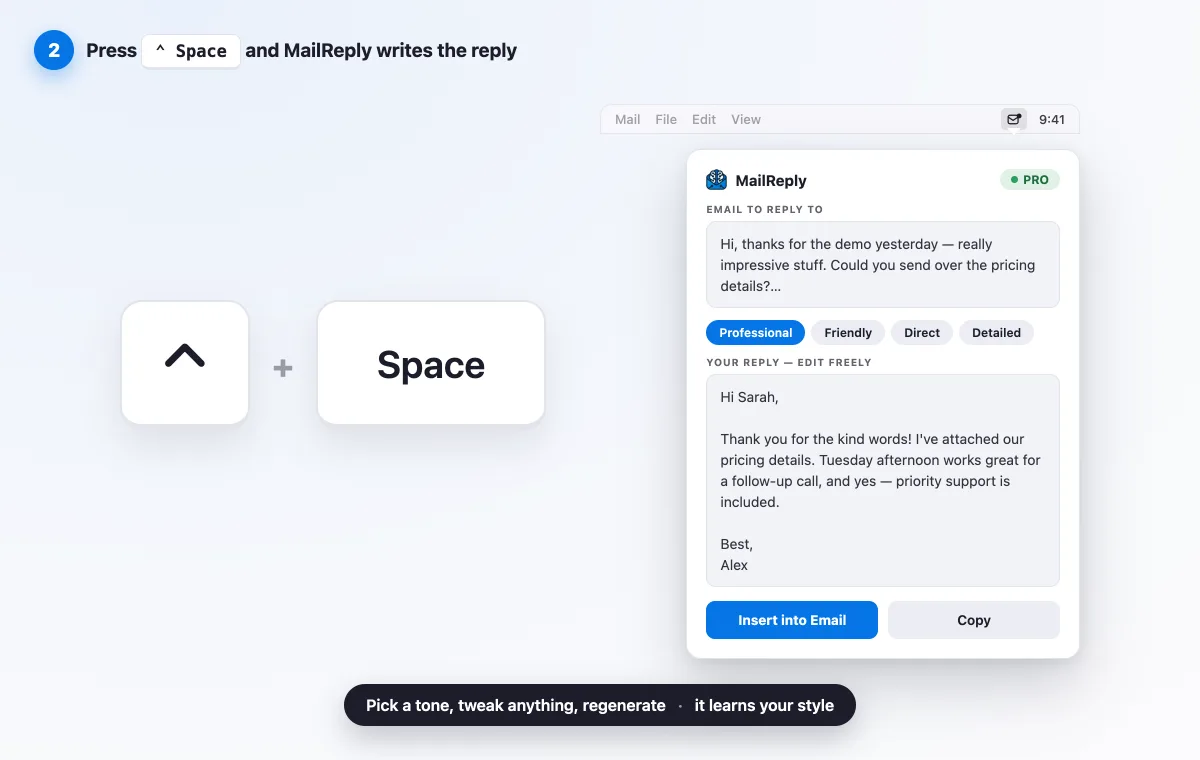
Three things worth knowing at this stage:
- Tones. Professional, Friendly, Direct or Detailed: click a different one and the reply regenerates instantly in that register.
- Everything is editable. The reply sits in a normal text box. Change a sentence, delete a paragraph, add a detail only you know.
- It learns. Every reply you approve teaches the assistant your style: how you greet, how you sign off, how short you like to keep things. The tenth reply sounds more like you than the first.
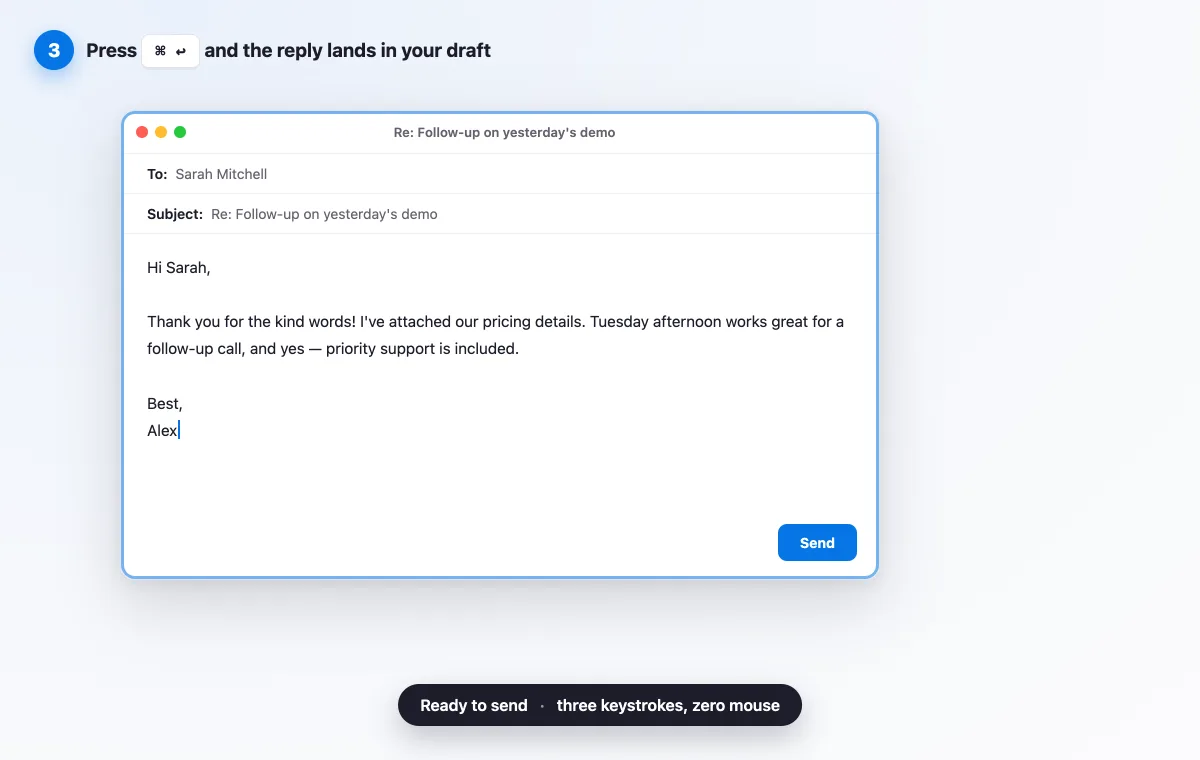
Step 3 - Press ⌘ ↩ and the reply lands in your draft
Click into your reply field (or hit Reply first, if you haven't), then press ⌘ ↩ (Command + Return). The finished reply is inserted right where your cursor is, ready to send. No window juggling, no paste dance: the whole round trip takes about five seconds.
No shortcuts? Copy and paste works too
If you'd rather not use keyboard shortcuts, the same flow works with plain copy and paste: copy the email with ⌘ C, click the MailReply icon in the menu bar (the popover opens with the email already in place), then hit Copy on the generated reply and paste it wherever you type with ⌘ V.
Why not just paste it into ChatGPT?
You can, and plenty of people do. Here is what the round trip actually costs you each time:
| Step | ChatGPT tab | MailReply |
|---|---|---|
| Copy the email | Manual | Automatic on ⌃ Space |
| Write the prompt | Every single time | Never: tone and style are saved |
| Adjust the tone | Rewrite the prompt | One click |
| Get it into your draft | Copy, switch app, paste | ⌘ ↩ |
| Sounds like you | Only if you re-explain yourself | Learns from every approved reply |
For one email a week, a chatbot tab is fine. For twenty a day, the thirty seconds of friction per email is exactly why replies pile up.
Does this work with Gmail and Outlook in the browser?
Yes, and that's the point of doing this at the system level instead of with a plugin. The selection happens in the browser tab, the popover opens from the menu bar, and the insert types into whatever field has focus. Gmail, Outlook on the web, corporate webmail behind a VPN: to macOS it's all just text.
What about privacy?
MailReply has no access to your inbox and never sees an email you didn't explicitly select. There's no account to create and no mail stored anywhere; only the text you select is sent for generation, when you press the shortcut. The replies you approve are used privately, tied to your device, to personalize your future replies, and you can see and reset everything the assistant has learned from Settings.
Reply to any email in one keystroke
Try the whole flow on the built-in sample email: no account, no card. Then point it at your real inbox.
Download MailReply for Mac